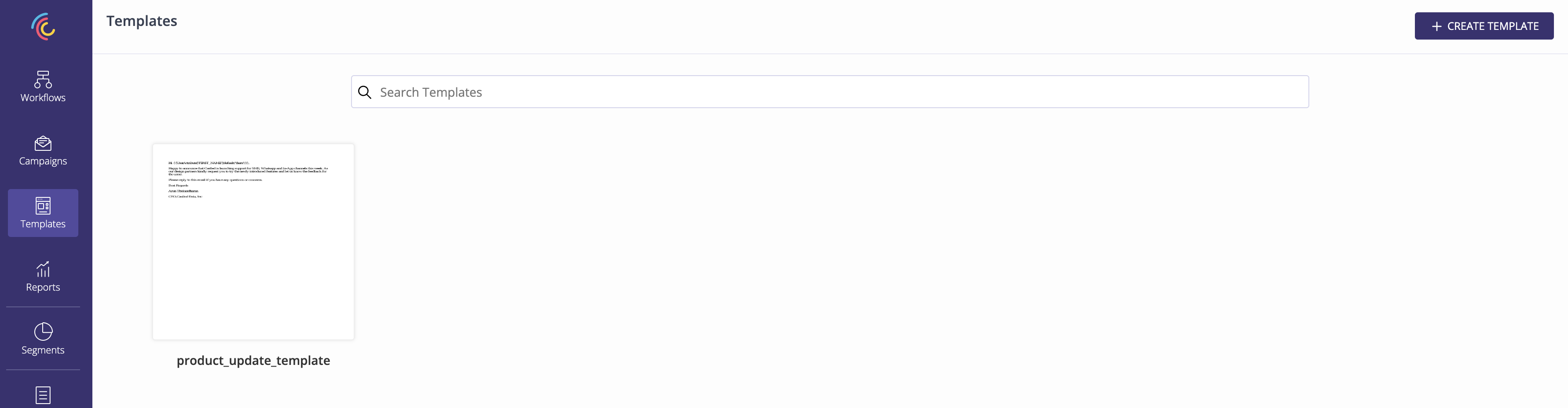
Email templates are to be predefined in Castled to be used in Email campaigns or Email steps in workflow. Defining templates enables the marketer to reuse an existing template in multiple campaigns with a little or no change in the template.Documentation Index
Fetch the complete documentation index at: https://docs.castled.io/llms.txt
Use this file to discover all available pages before exploring further.
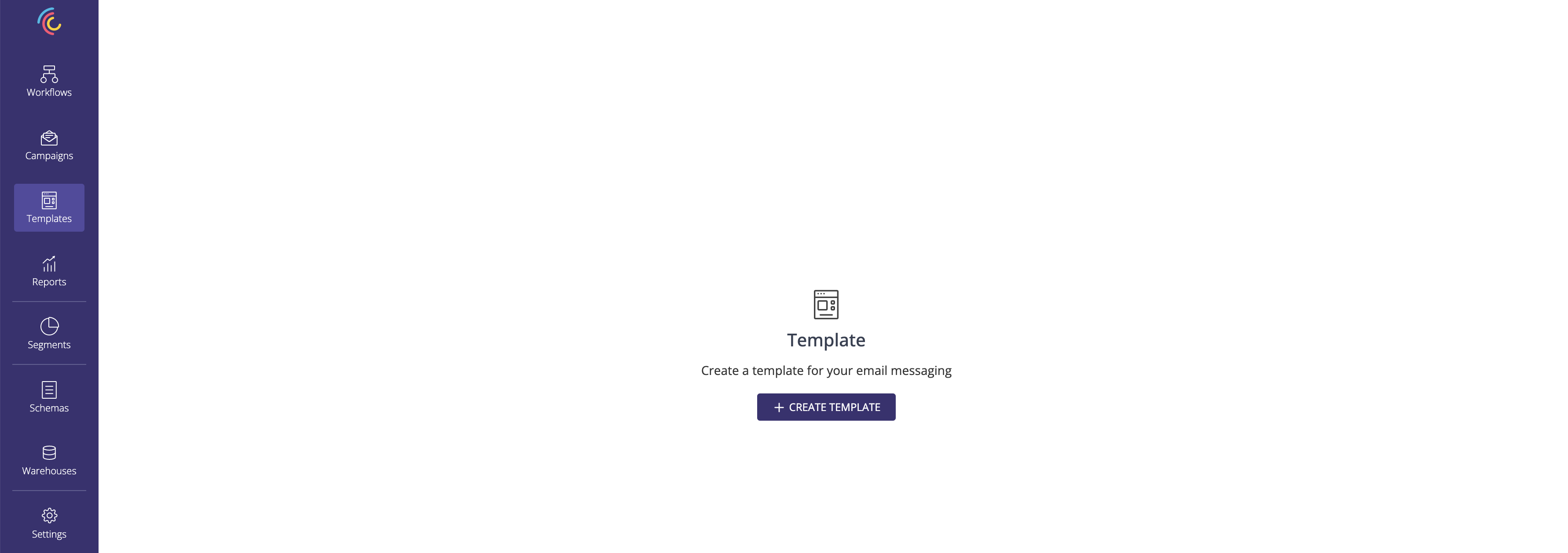
1. Go to List Templates page and click CREATE TEMPLATE button.
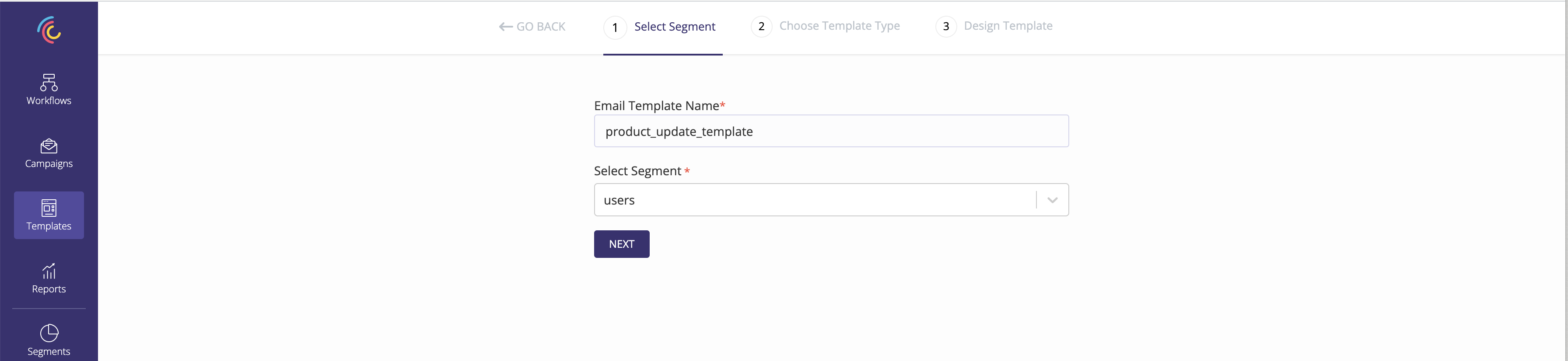
2. Choose the User segment to be used.
User segment needs to be captured if personalisation is required in the email template being created. Make sure the User Segment is already created before the email template is created.
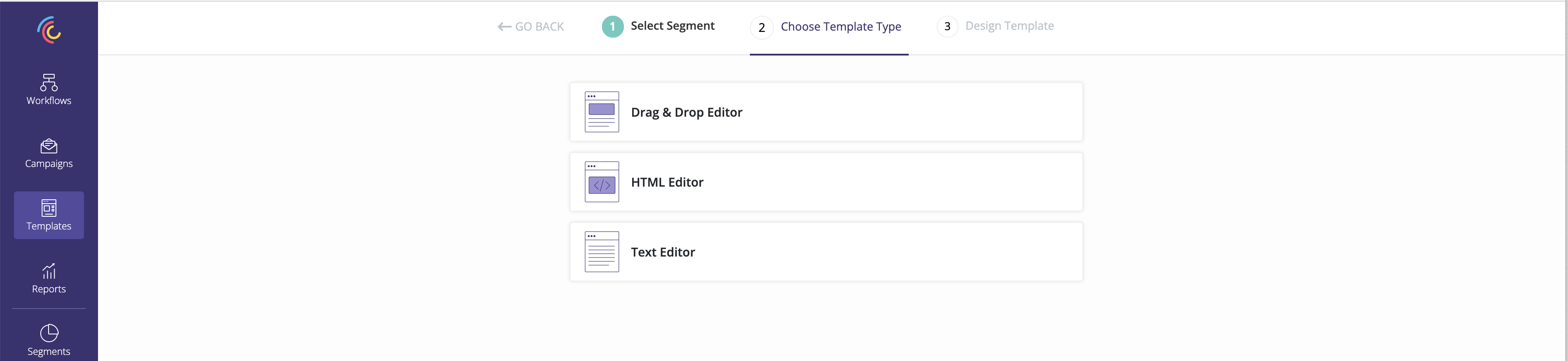
3. Choose the template type.
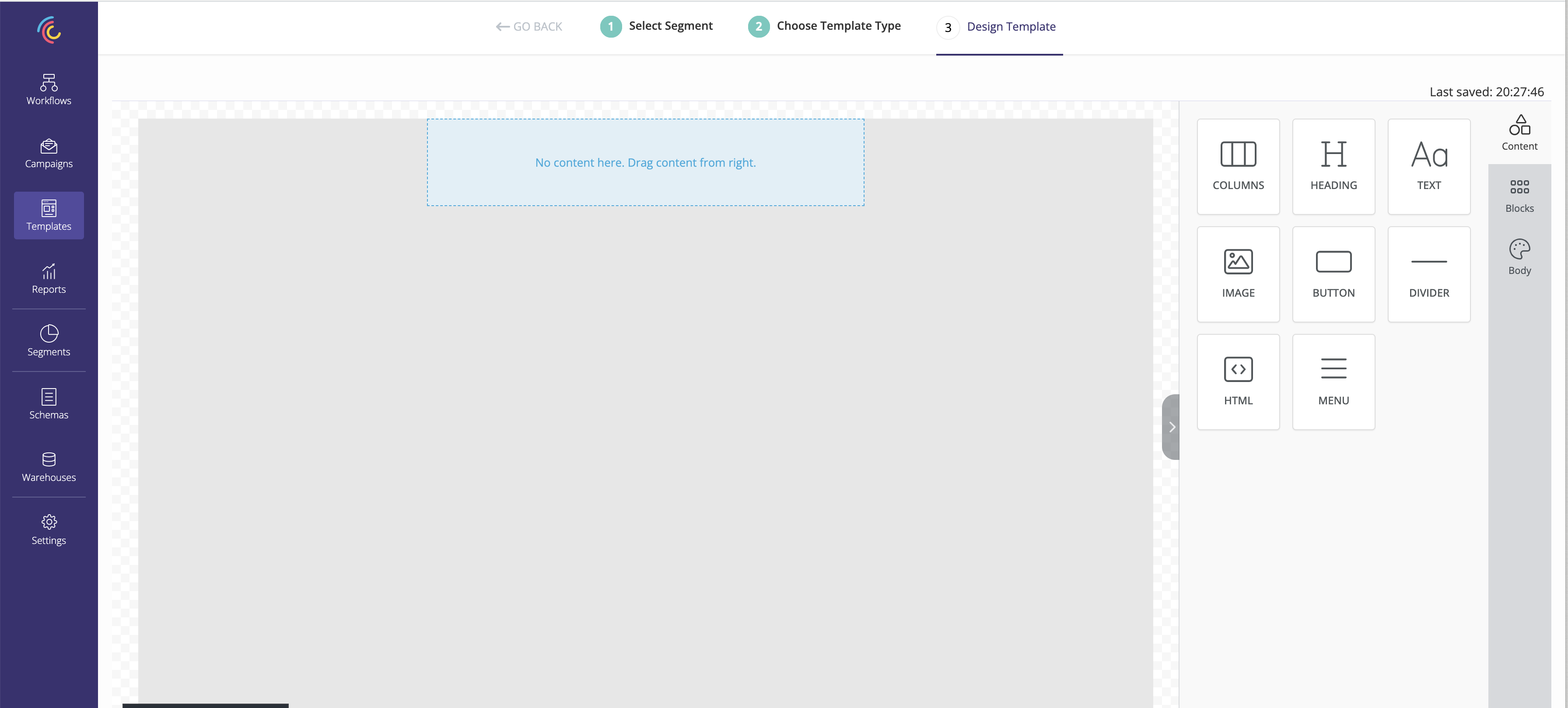
Castled supports three template types :- Drag & Drop Editor
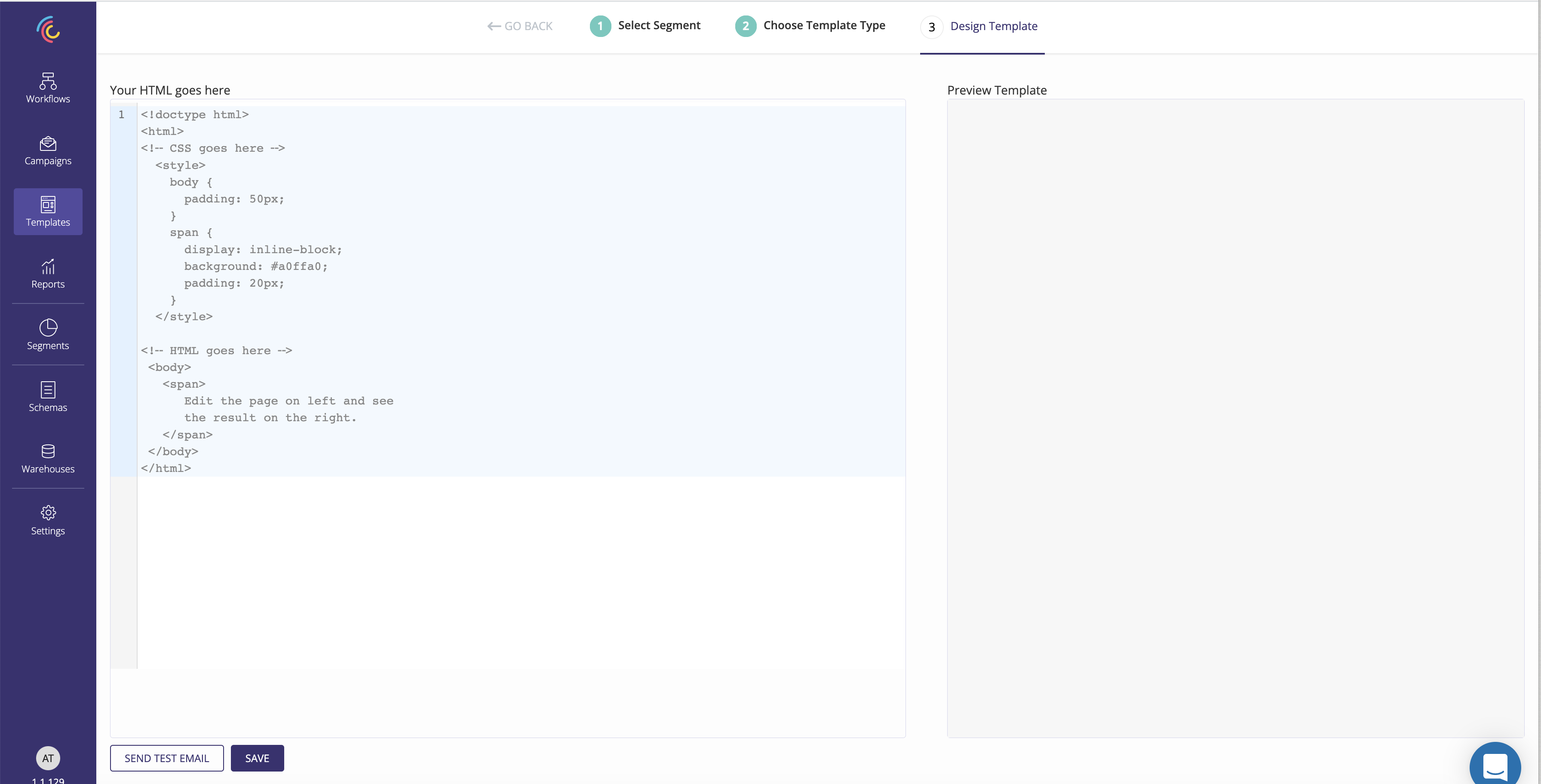
- HTML Editor
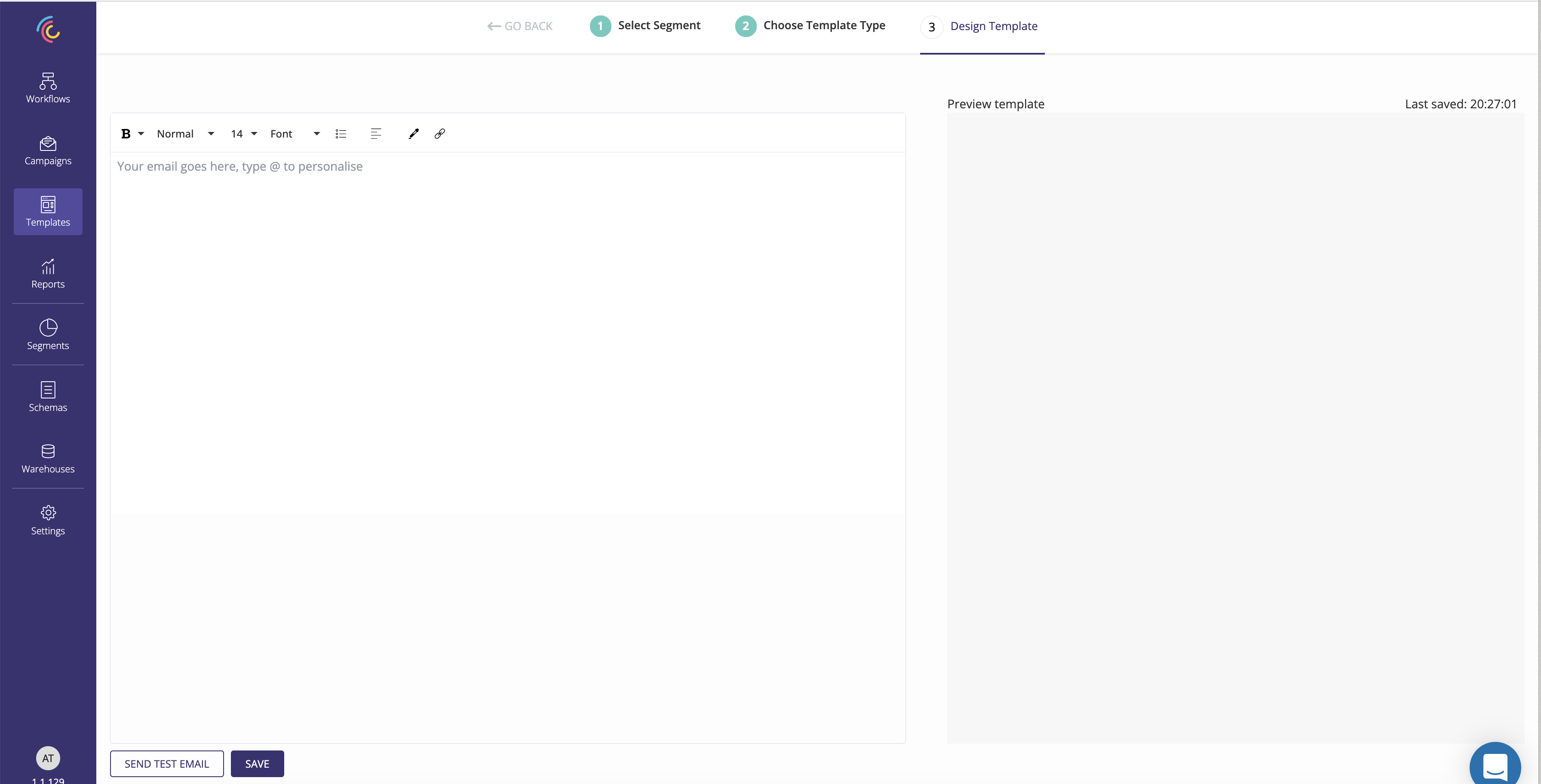
- Rich text Editor
Drag & Drop editor
HTML Editor
Rich Text Editor
4. Personalise the email template.
Castled provides the option to personalise the Email template being created. Type @ to invoke the personalisation popup.Refer personalisation section for more details.
5. Select the User property required for personalisation.
Select the User property to be used in the template and capture the default value for cases where the property value might not be available for that User.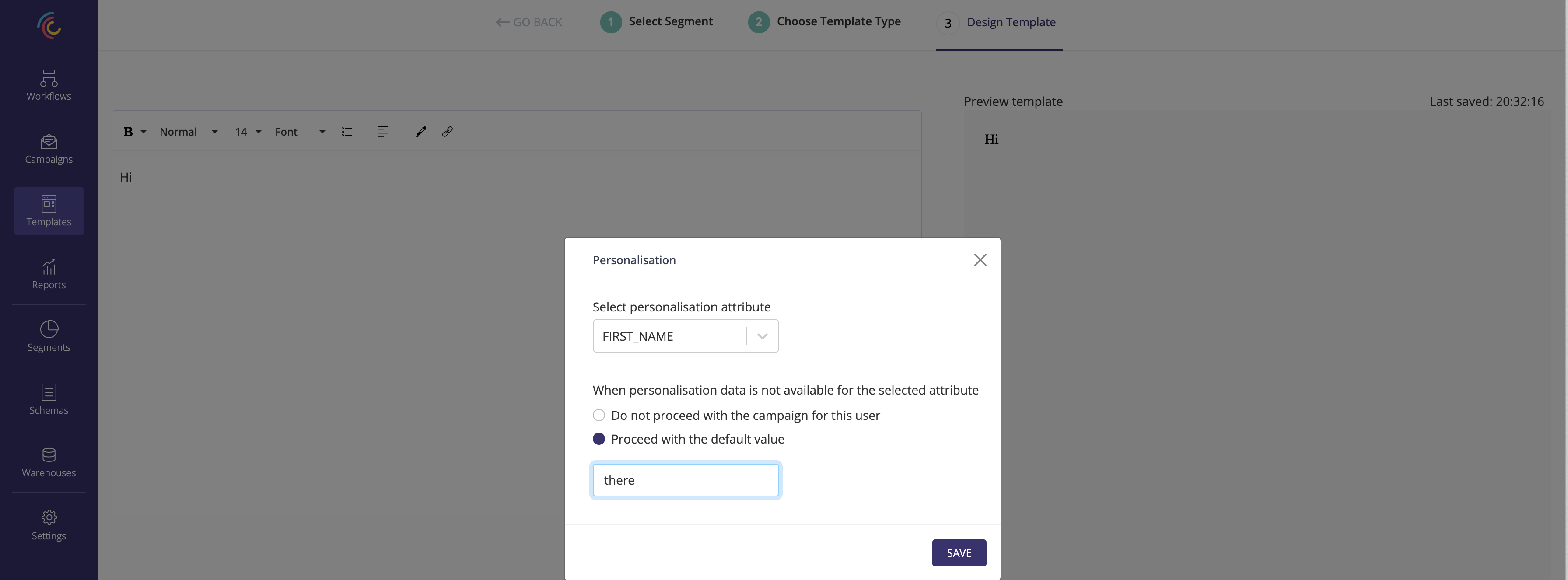
6. Complete the template design.
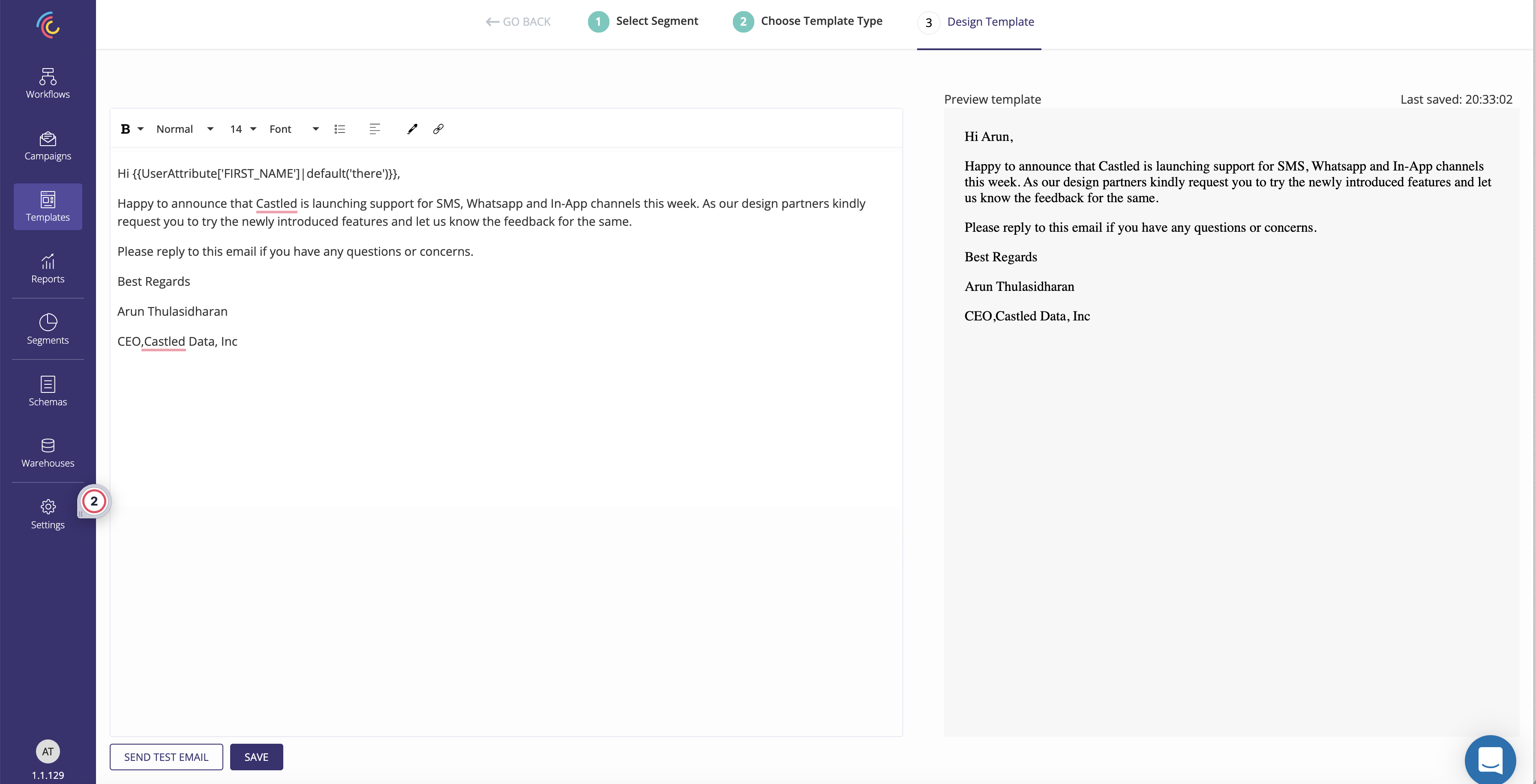
7. Send test email.
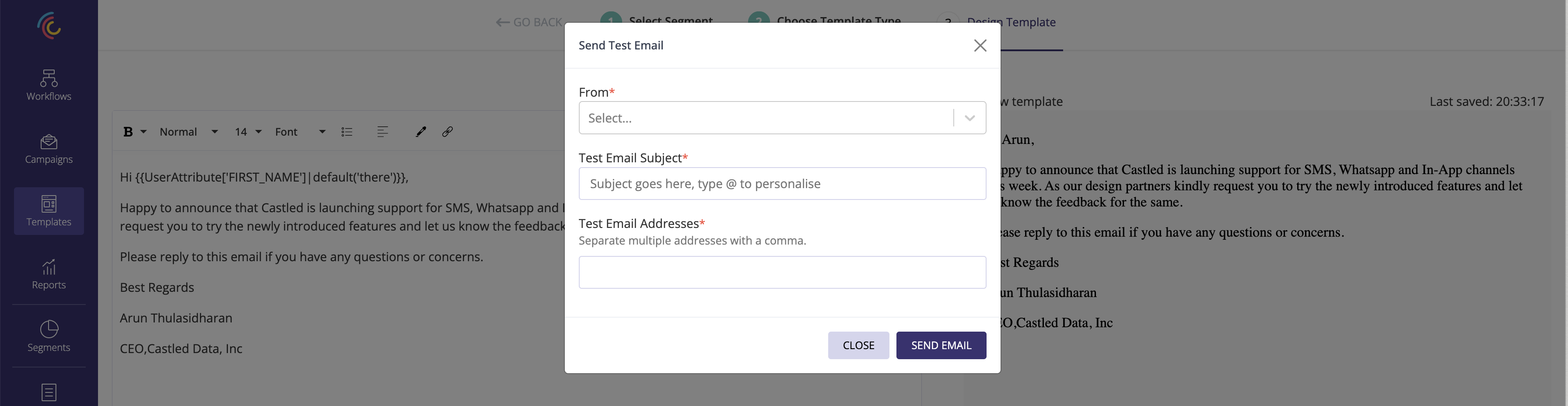
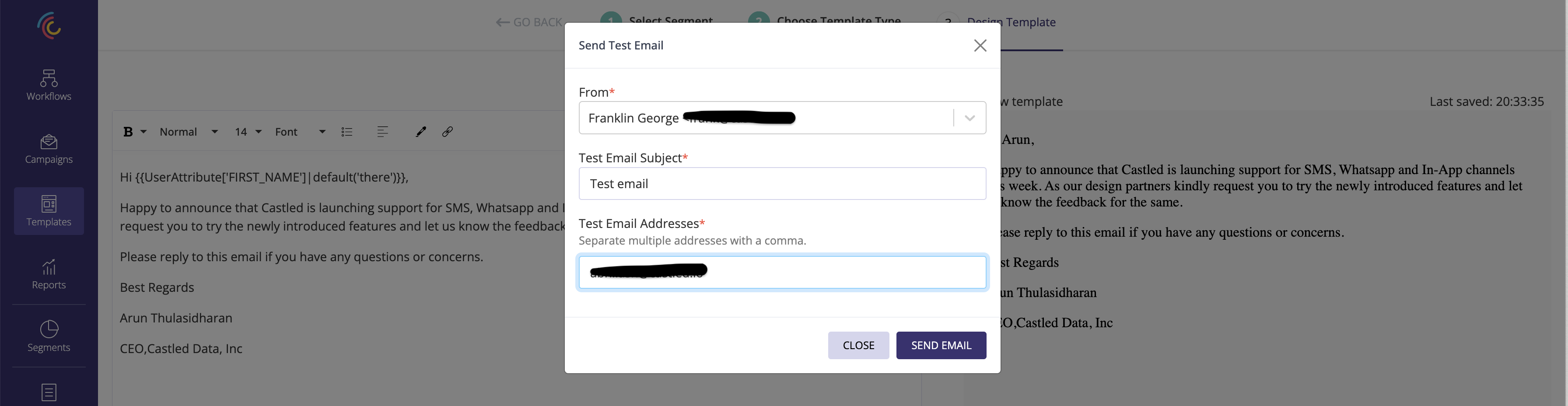
8. Capture the test email subject, from address and recipient email address to whom the test email needs to be send.
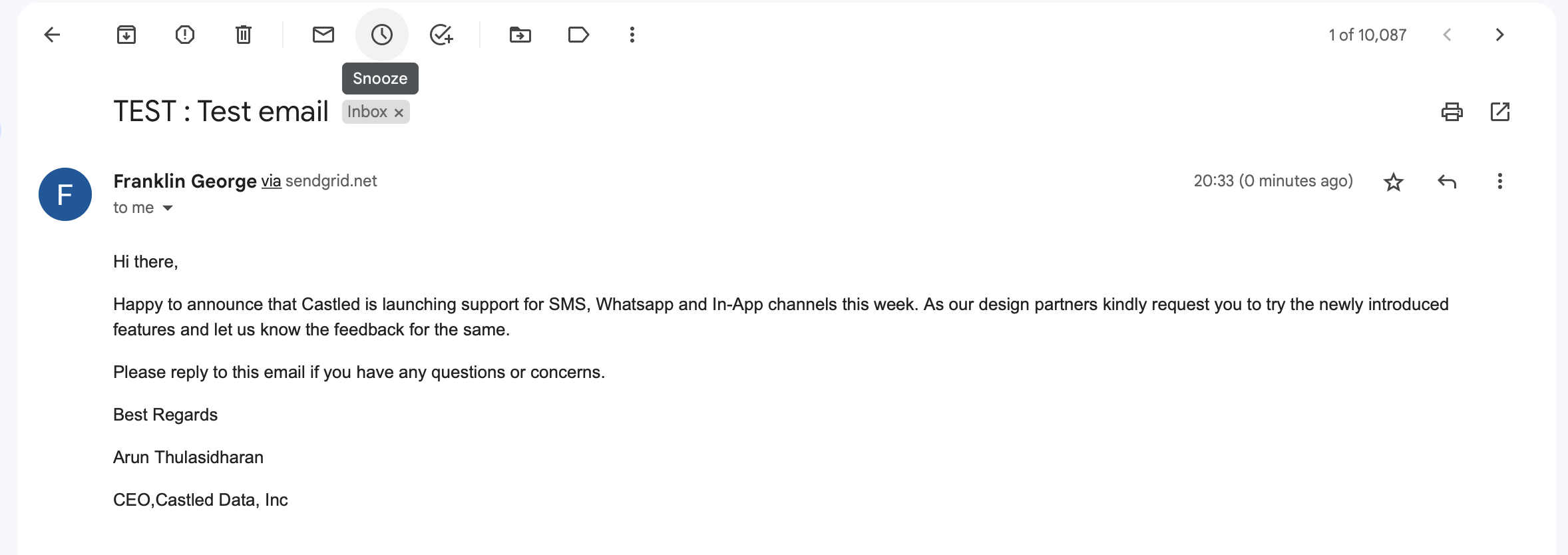
9. Check the recipient email address to verify the email template.
10. Save the email template so that it is listed in the List Template screen.